Author: sts
-
The Room That Wasn’t Captured
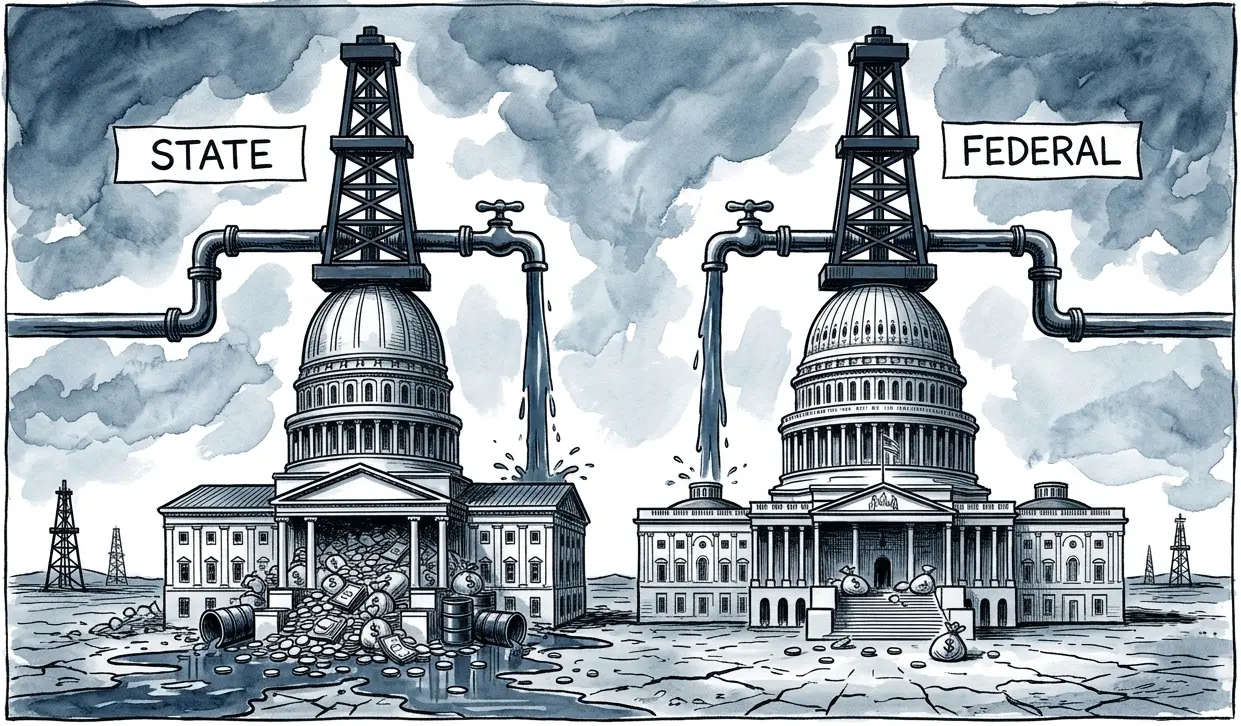
Block 10, Article 8 — The Reddest States Already Ran This Experiment for Fifty Years Wyoming charges itself more for its own coal than the federal government charges for coal on federal land in Wyoming. So does North Dakota, for oil. So does Montana. None of these are coastal states. None of them are liberal.…
Written by
-
The Rule That Cost Nothing to Keep
Notes from the Field — August 6, 2026 A federal agency proposes to remove the floor and calls it a foundation. Head Start has run on the same basic promise since 1965: a minimum floor beneath the country’s poorest children, set once, checked continuously. On August 6, the Department of Health and Human Services proposed…
Written by
-
The Mountain That Isn’t There Anymore
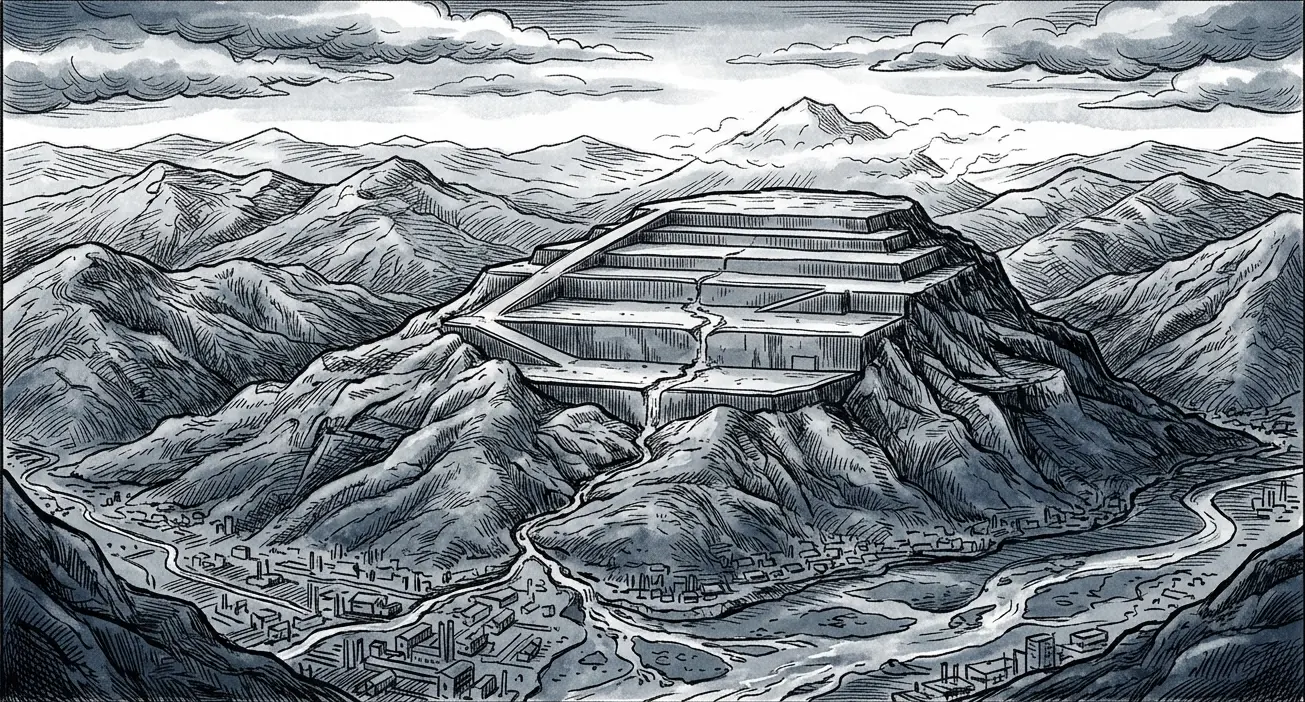
Block 10, Article 7 — The Commons Was Not Depleted. It Was Detonated. Block 1 established what was here. This article closes the ledger on what cannot be restored. Mountaintop removal is not metaphor. In 2024, Tennessee’s Division of Water Resources completed an audit of active surface mining permits in the state. Of 79 permits…
Written by
-
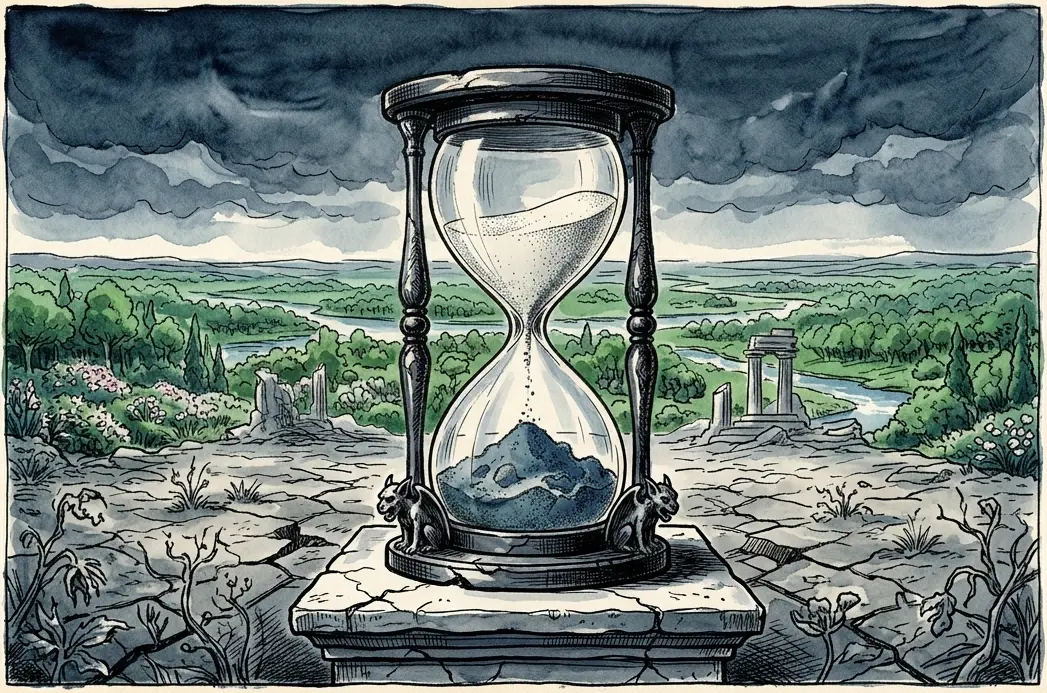
The Children’s Inheritance
Block 10, Article 6 — The Profit Was Privatized. The Loss Was Socialized. Every member of Congress takes an oath to support and defend the Constitution of the United States and to well and faithfully discharge the duties of the office. Article I, Section 8 names one of those duties specifically: Congress shall have power…
Written by
-
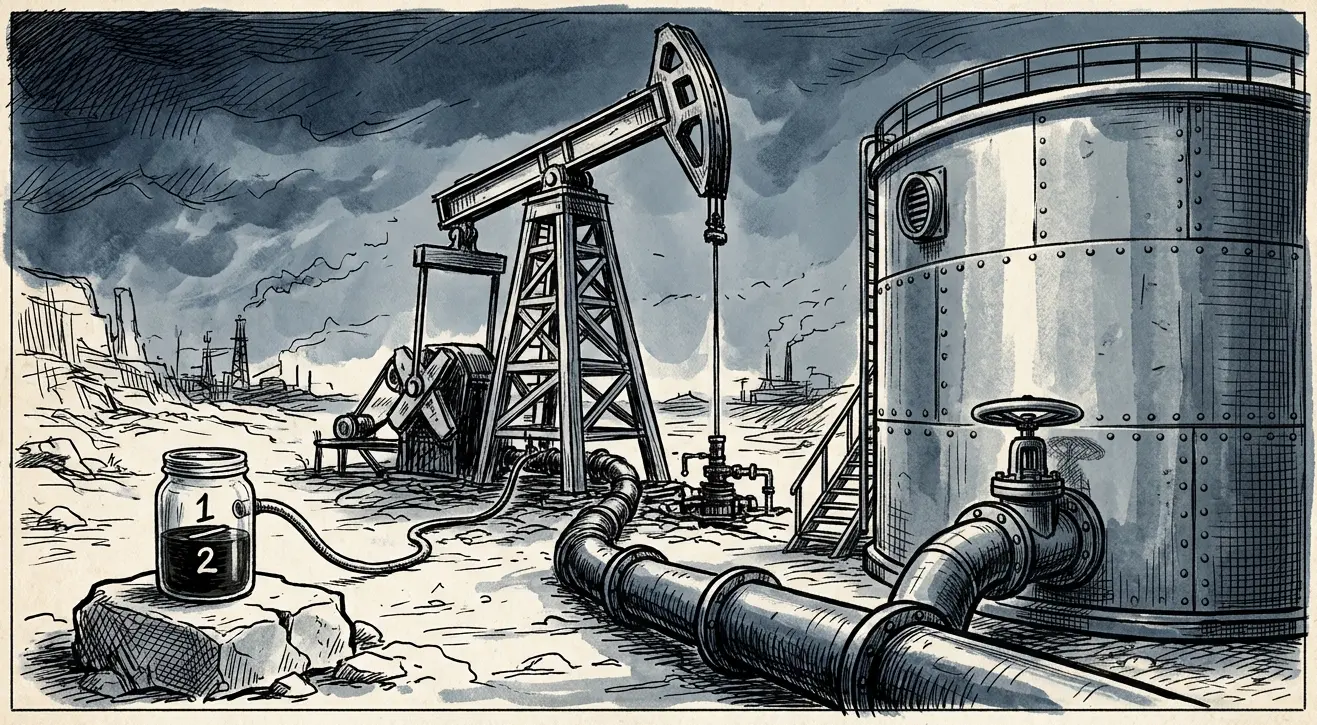
Who Got Rich
Block 10, Article 5 — The Seller Set the Price. The Seller Owned the Room That Set the Price. The previous four articles documented what was spent. This one names who collected. The royalty rate no one adjusted The Mining Law of 1872 set the royalty rate for hardrock minerals extracted from federal land at…
Written by
-
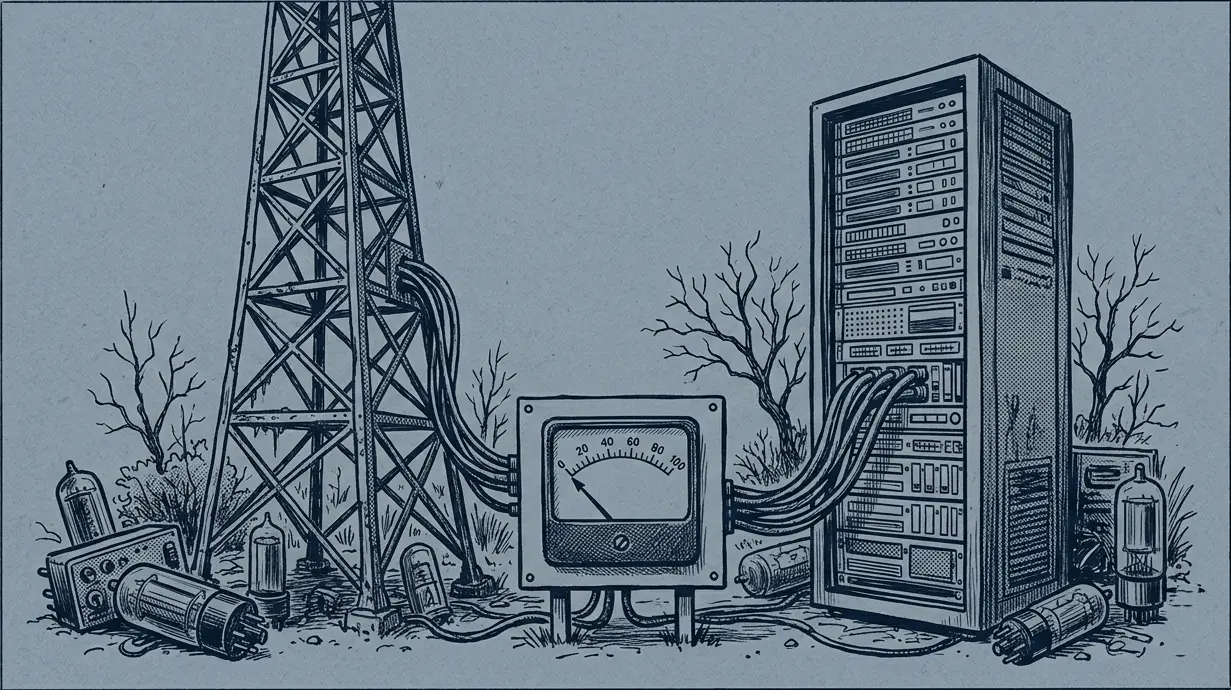
Frequencies, Formulas, and the Foundation
Block 10, Article 4 — The Foundation Cost $900 Billion. The Invoice Was Never Prepared. The spectrum and the science didn’t disappear by accident. The apparatus that stopped the watching was built in Blocks 8 and 9. What follows is the balance sheet entry — what was there, what was taken, and what the public…
Written by
-
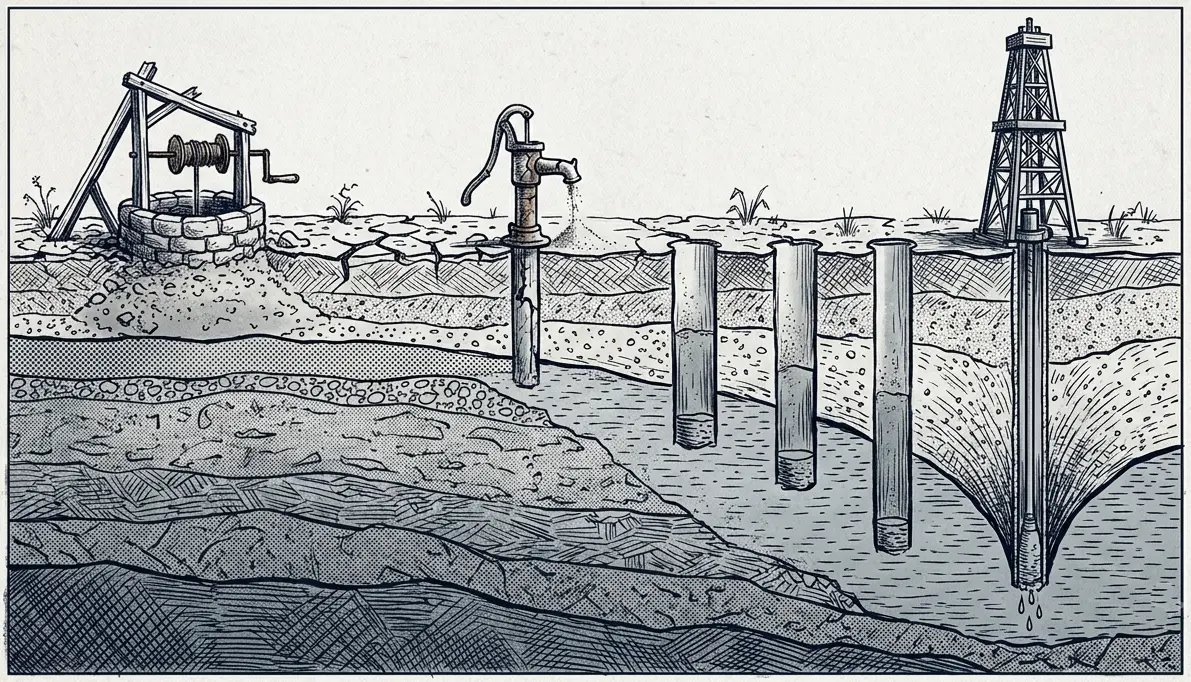
The Water We Spent
Block 10, Article 3 — The Compact Allocated More Water Than the River Contains The prior appropriation doctrine did not just allocate water. It privatized it — permanently, in perpetuity, at no charge. The Colorado River no longer reaches the sea. Not occasionally, in drought years. As a matter of settled fact. The river that…
Written by
-
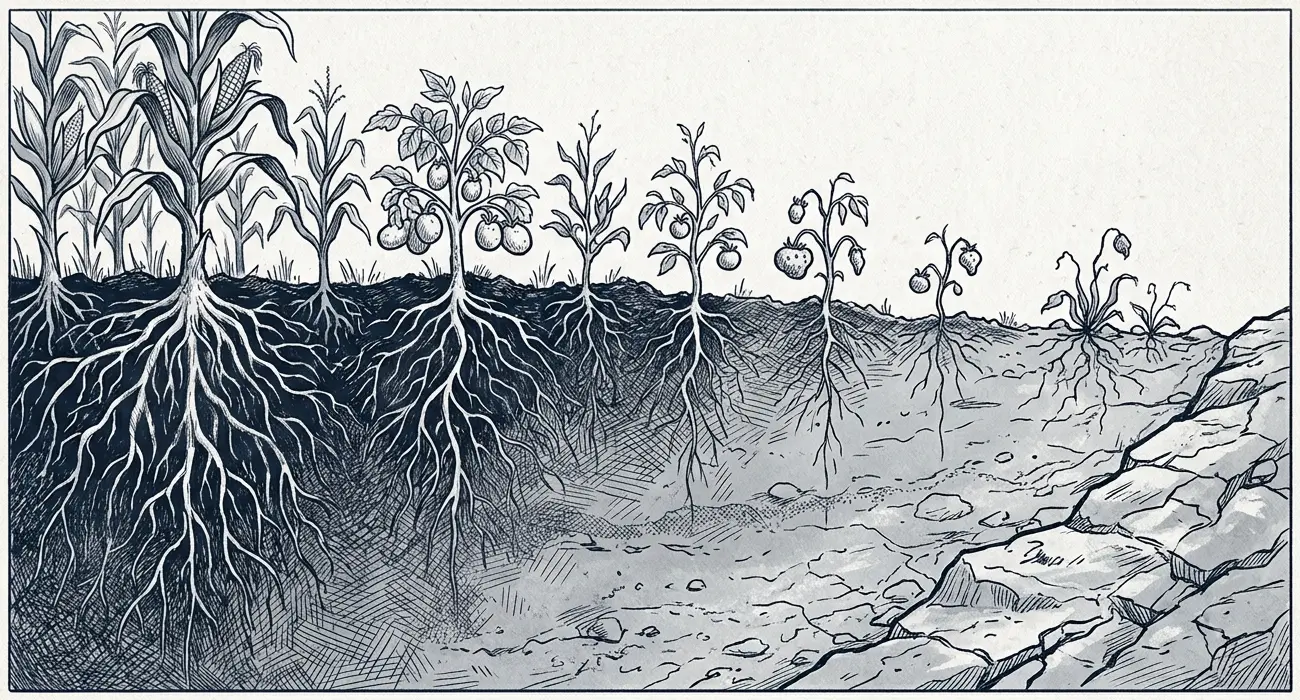
The Ground We Are Spending
Block 10, Article 2 — The Dust Bowl Got a New Deal. The Invisible Dust Bowl Gets a Farm Bill. The legal architecture that arranged the transfer also arranged for the accounting not to happen. American farmland looks different from a plane than it did a generation ago. The hilltops are lighter. Where the topsoil…
Written by
-
The Government’s Cut
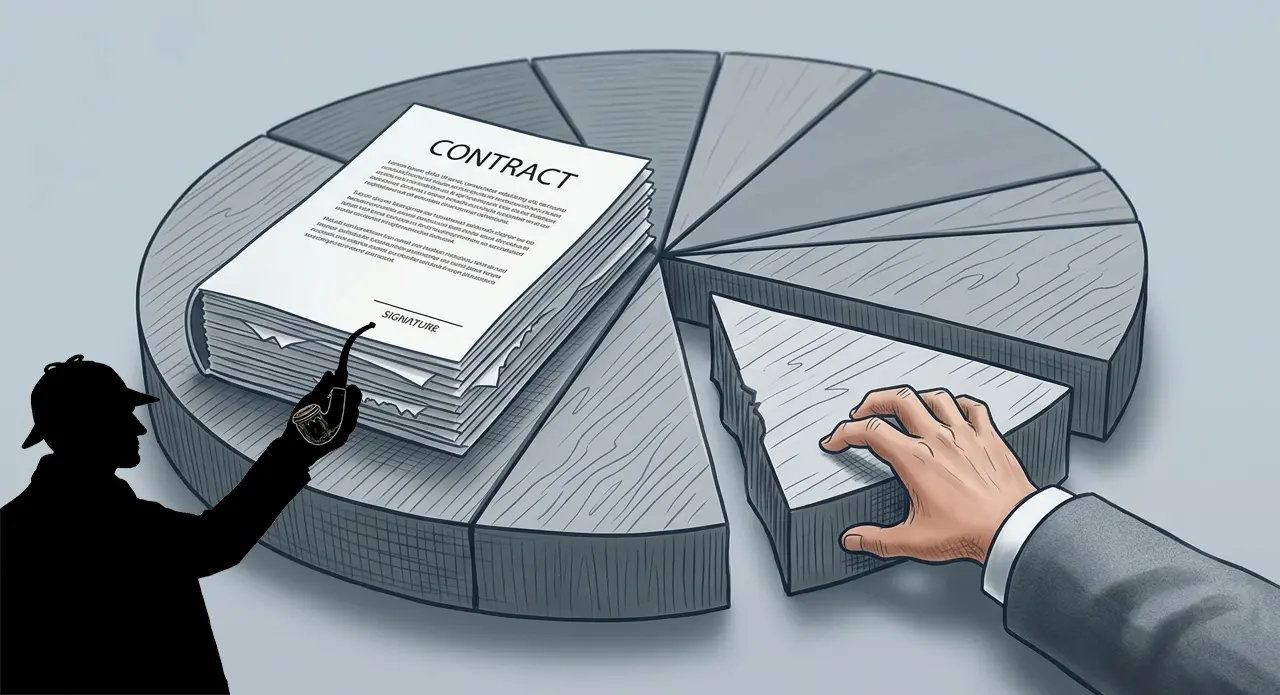
Notes from the Field — July 31, 2026 I. The rush Bankers have a phrase for what’s happening right now: “now or never.” A $67 billion utility merger between NextEra Energy and Dominion Energy. A $53 billion bid for PayPal. A $29 billion restaurant-supply acquisition. All moving at a pace that would have been unthinkable…
Written by
-
The Balance Sheet
Block 10, Article 1 — The Voter Set the Standard. The Committee Rewrote It. Block 1 opened with what was here. This article opens the accounting. A congressional farm bill can nullify the results of a ballot measure. Not in theory. In practice, in the current session of Congress. California voters passed a ballot measure…
Written by